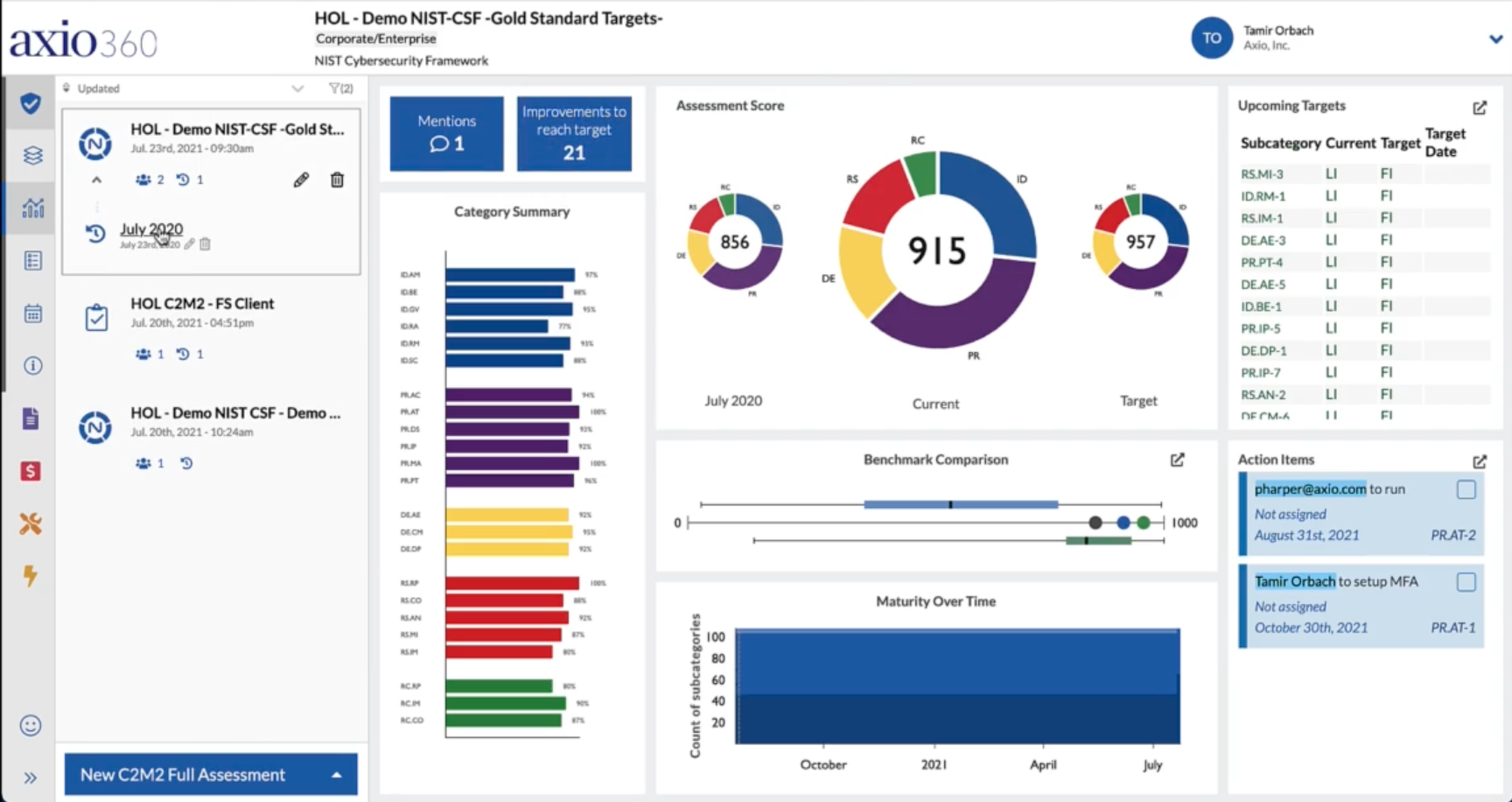
- Another powerful aspect of Axio360's Assessment module is the ability to do continuous assessments.
- Axio360 allows for the continuation of previous assessments via the "Milestone" function.
- A milestone looks at the values that were there before the milestone was created and provides a score associated with the date in the milestone.
- As new values are entered into the assessment, the milestone will compare the scores of the assessment at the time of the milestone and the current score.
- The example below does not have a milestone created so there is no previous assessment to compare scores to.
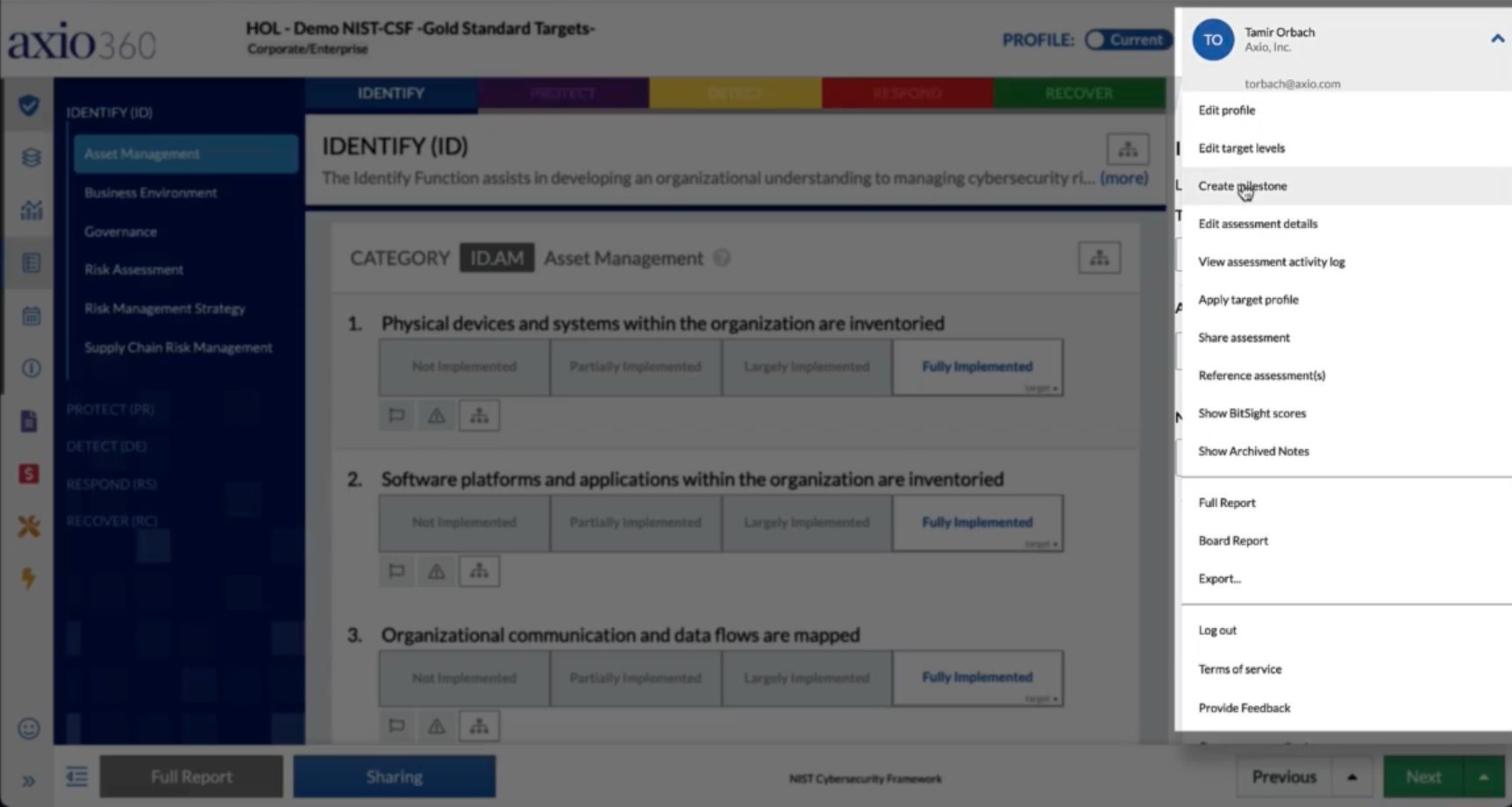
- Go into the assessment by clicking the assessment title and then go to the drop down menu on the top right under your username, where you'll see the "Create milestone" option.
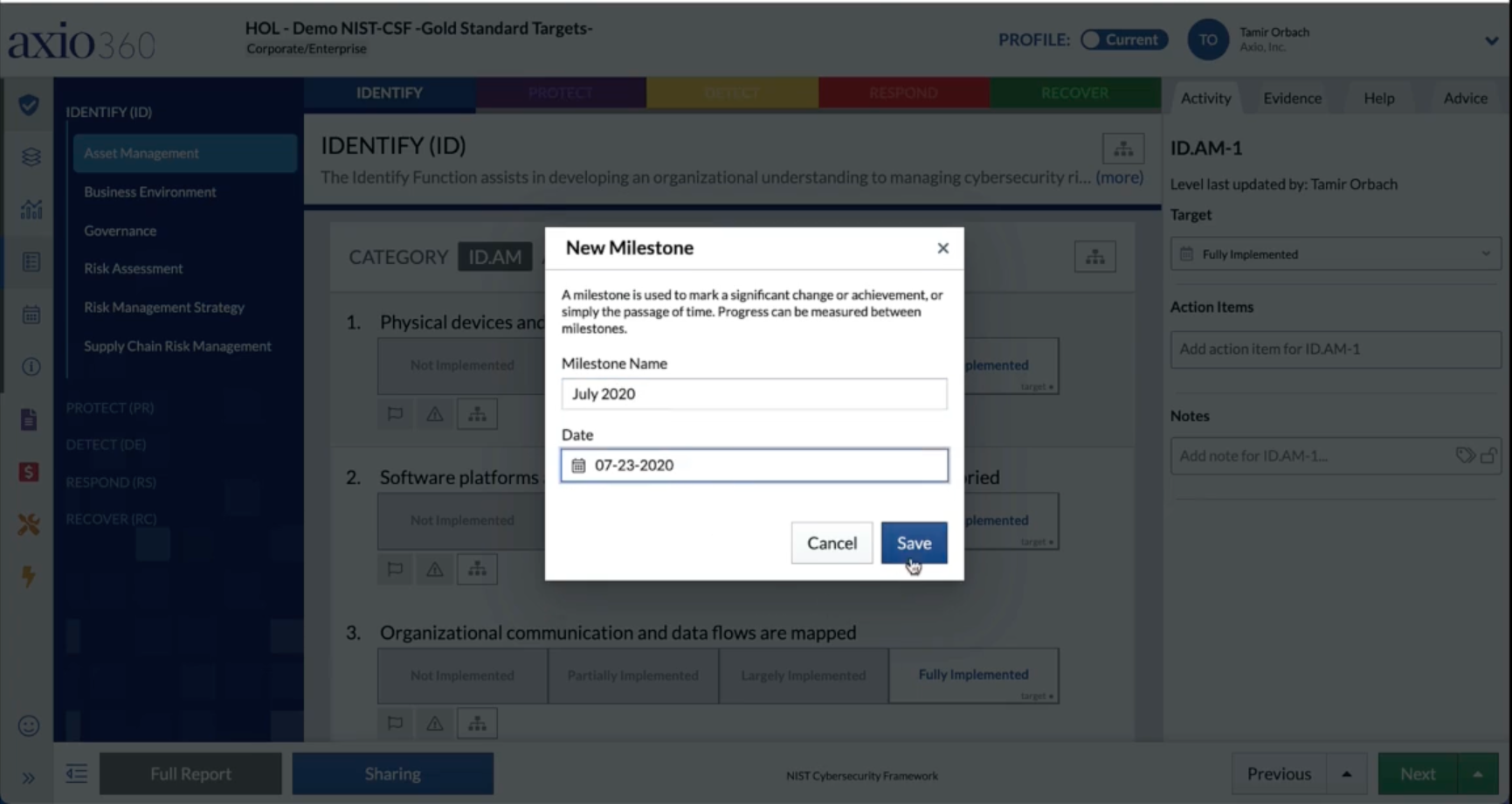
- In this example, call the milestone name "July 2020" and set the date at "7/23/2020".
- Now go back to the dashboard by selecting the bar and line graph icon on the left.

- Here you'll see that the Assessment Score panel shows a score for July 2020, the date and score that correlates with the milestone we created, a current score and a target score.
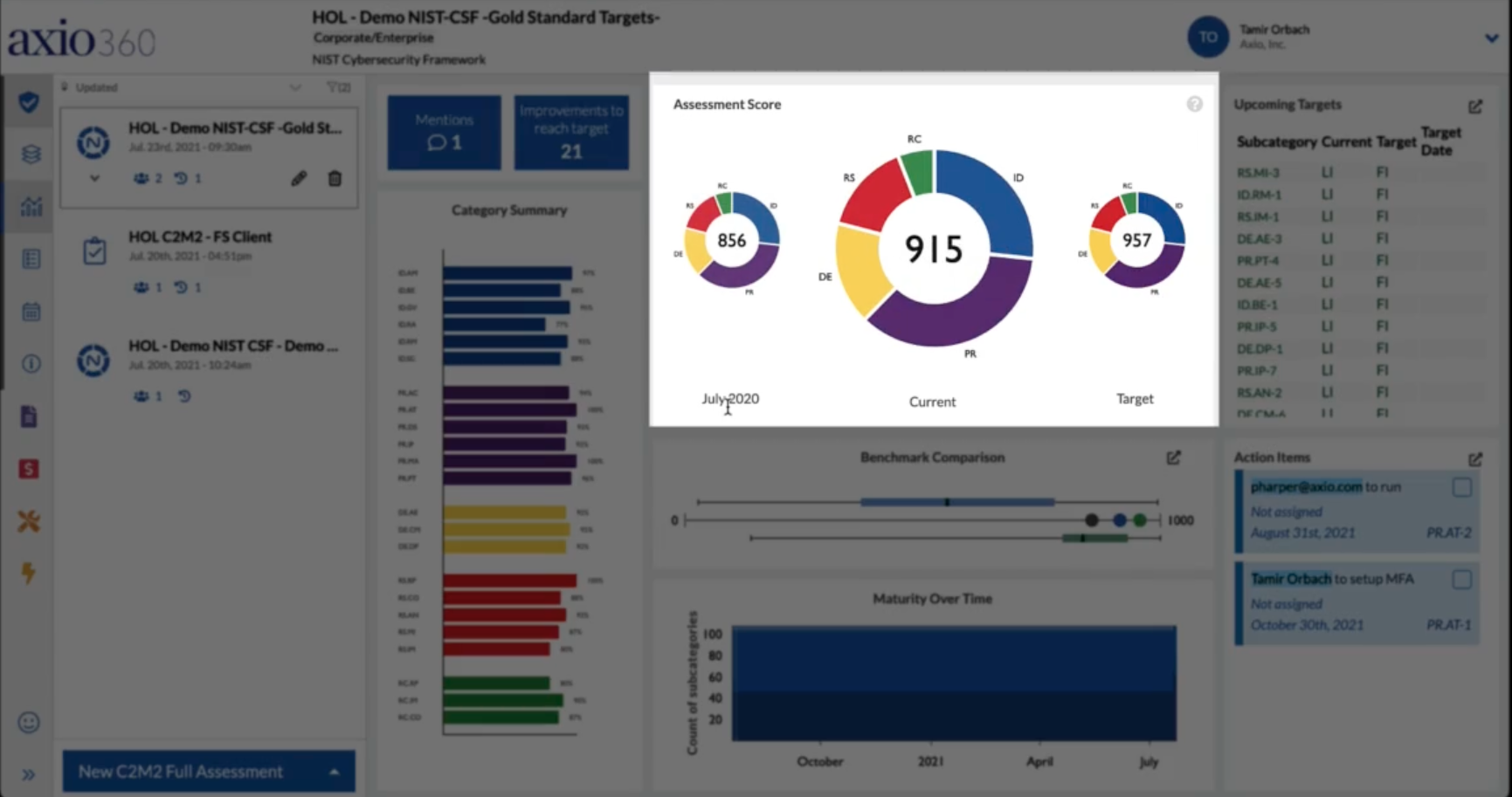
- You will also see that this milestone has been created if we select the arrow under the assessment title on the left.
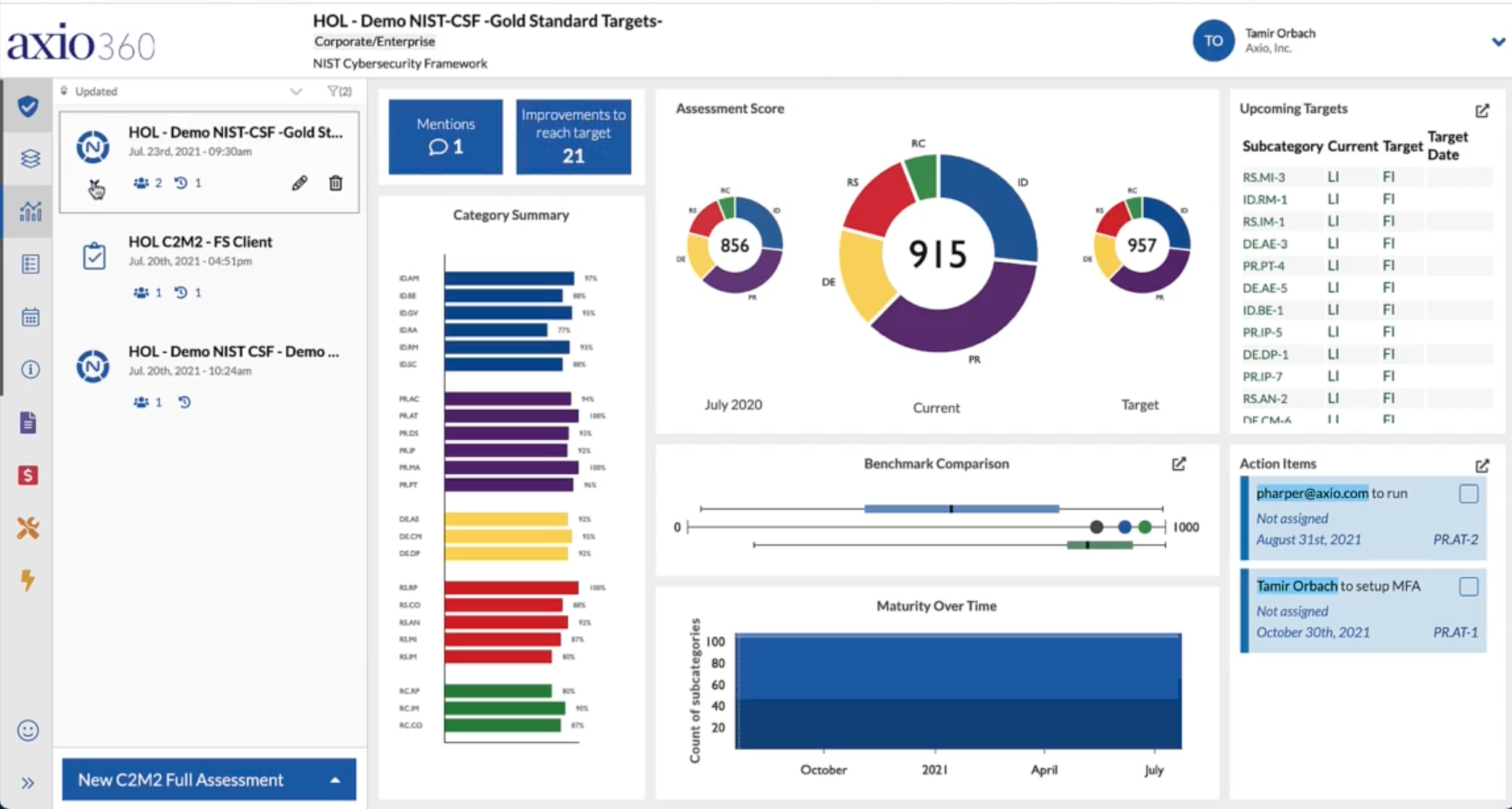
- There it has registered the July 2020 milestone and we can keep adding new milestones as we enter new values and continue our assessment.