
Enabling MFA adds an extra layer of security to your Axio account. Follow the steps below to activate it using SMS verification.
Step 1: Access the Profile Menu
-
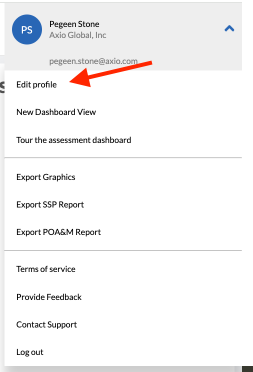
Click on your profile icon in the top-right corner of the dashboard.
-
From the dropdown menu, select Edit profile.
Step 2: Update Profile Information
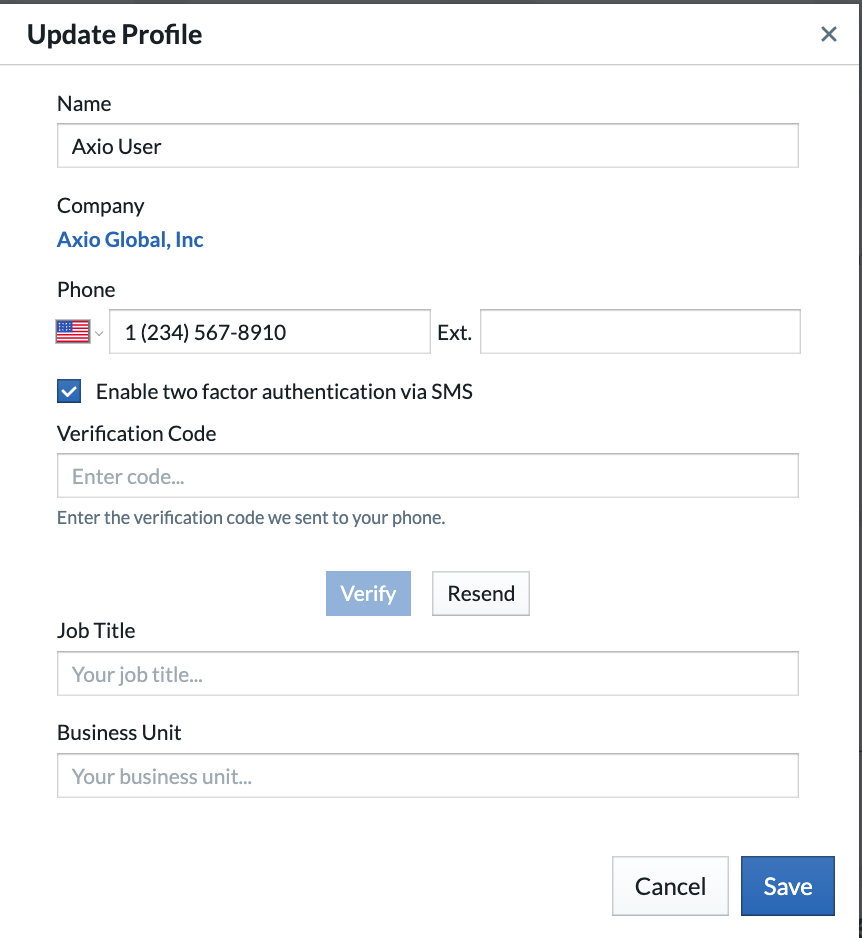
You will be directed to the "Update Profile" page.
-
Confirm or update the following:
-
Name
-
Phone number (ensure it’s a number capable of receiving SMS).
-
-
Check the box labeled Enable two factor authentication via SMS.
Step 3: Enter the Verification Code
-
After enabling SMS authentication, Axio will send a verification code to the provided phone number.
-
Enter the code into the Verification Code field.
-
Click Verify to confirm your phone number.
-
If you didn’t receive the code, click Resend.
-
Step 4: Save Your Changes
-
Optionally, you can enter your Job Title and Business Unit.
-
Click the Save button at the bottom right of the form.
✅ MFA is now enabled on your Axio account. You’ll be prompted for a code sent to your phone whenever you log in, increasing your account security.